How to make a playlist on YouTube (and grow with it)
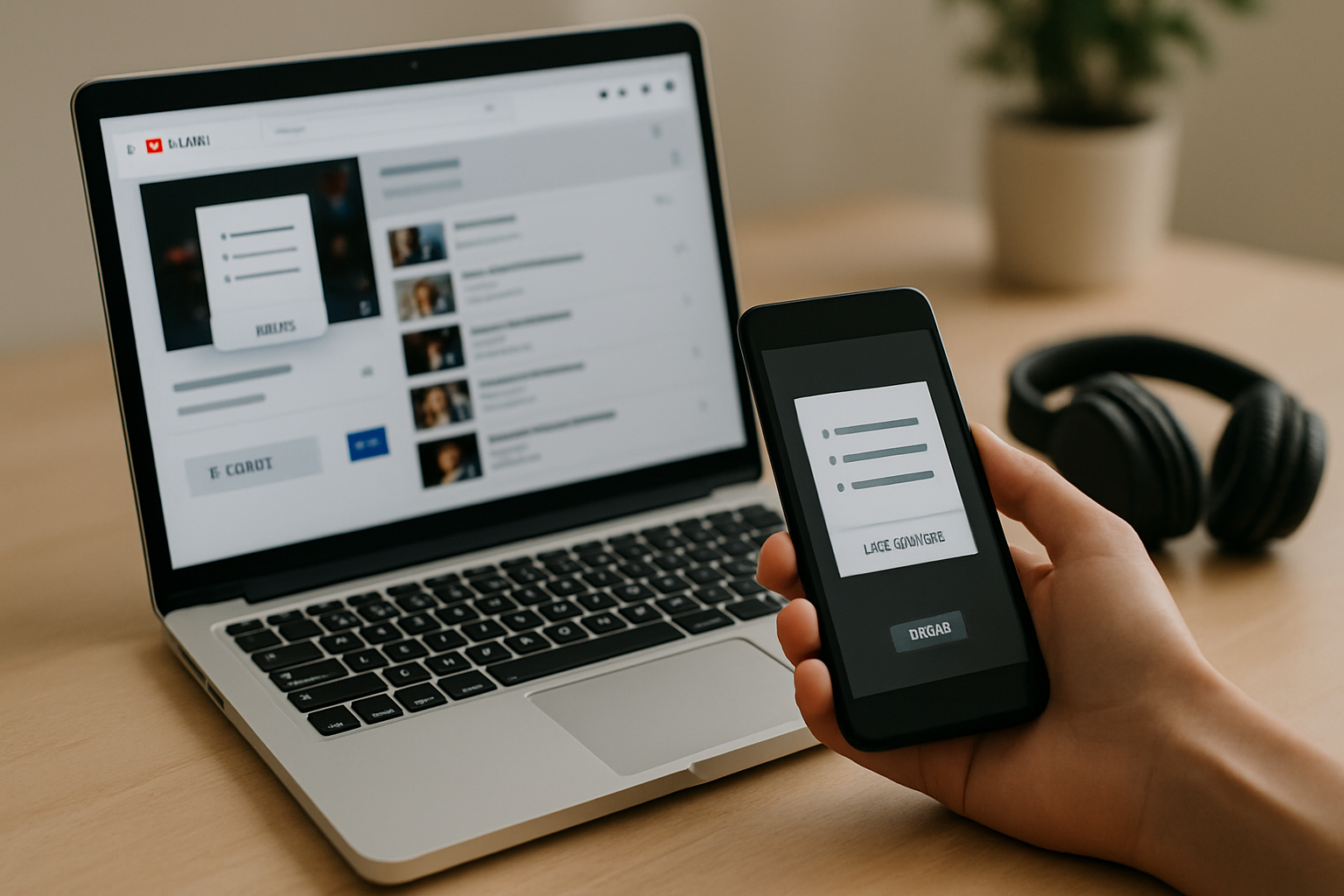
TL;DR: Creating a YouTube playlist takes under two minutes, but the real gain is watch time and subscriber growth. Pair your best playlists with a link-in-bio page that actually ranks on Google and you turn casual viewers into long-term followers.
How to make a playlist on YouTube
Creating a YouTube playlist takes about ninety seconds. Open YouTube, click your profile icon, go to "Your channel," hit "Playlists," then "New playlist." Name it, set the visibility (Public, Unlisted, or Private), and save. That is the whole process. You can add up to 5,000 videos per playlist, and you can start one with a single video.
Most guides stop there. This one does not, because the playlist itself is only half the equation. Where you send people after they watch is where the real growth happens. Creators who link directly to a curated playlist from their bio see higher completion rates than those who dump followers onto a bare channel page.
- YouTube has more than 2.6 billion monthly active users. Playlists are one of the main tools the algorithm uses to surface content in suggested feeds.
- Watch time is YouTube's top ranking signal. Playlists chain videos together automatically, so viewers keep watching without deciding to.
- You can create a playlist in under two minutes from desktop or mobile.
- Pairing your best playlist with a link-in-bio page on a custom domain gives YouTube traffic a place to land that Google can actually index.
Why playlists matter more than most creators realise
YouTube's algorithm ranks videos partly on session watch time, not just watch time on a single video. When a viewer finishes your video and YouTube auto-plays the next one in your playlist, that entire session counts toward your channel. Channels that organise content into tight playlists consistently outperform those with the same number of uploads but no curation. A 2023 analysis by Tubics found that the top 1% of YouTube channels by growth all had at least five active public playlists maintained within the past 90 days.
For creators and small businesses, the strategic case is simple. A playlist of five tutorial videos on the same topic keeps a potential customer watching you for twenty minutes. That is twenty minutes of trust-building before they ever click a link. The creator who sends someone to a well-organised playlist, then captures that person's attention via a strong link-in-bio, converts at a meaningfully higher rate than the creator who relies on YouTube's sidebar to figure it out.
Step-by-step: creating a YouTube playlist on desktop
The full process from a logged-in desktop browser takes about ninety seconds. Here is exactly how it works.
- Go to YouTube.com and make sure you are signed into the right account.
- Click your profile picture in the top-right corner.
- Select "Your channel" from the dropdown menu.
- Click the "Playlists" tab on your channel page.
- Click the "New playlist" button (top right of the playlists section).
- Type a name for your playlist. Make it descriptive and searchable. "Best of" is weak. "YouTube SEO tips for creators 2024" is better.
- Set visibility. Public means anyone can find it. Unlisted means only people with the link can see it. Private is just for you.
- Click "Create" and you are done.
To add videos to the playlist you just created, go to any video on YouTube, click the three-dot menu below the title, then click "Save to playlist." Check the box next to your playlist name and the video is in.
Creating a playlist on mobile (Android and iOS)
The mobile flow is nearly identical. Open the YouTube app, tap your profile icon in the top-right, then tap "Your channel." Scroll down to the Playlists section and tap "New playlist." You get the same options: name, visibility, create. Adding videos works the same way via the three-dot menu on any video page.
One difference worth knowing: reordering videos in a playlist is easier on desktop. If you are building a structured series, do your playlist management on a computer.
Switch from Linktree in 60 seconds
Paste your Linktree URL — we'll bring over your links, bio, and avatar. Free forever, no credit card.
Import my Linktree →
How to use playlists strategically as a creator
Building a playlist is the easy part. Building a playlist that drives channel growth takes a bit more thought. There are four things that separate the playlists that compound in reach from the ones that sit idle.
Name playlists like search queries. YouTube is a search engine. "My videos" will never rank. "How to edit videos in CapCut for beginners" might. Think about what a viewer would type if they wanted this specific collection.
Put your best video first. The first video sets the completion expectation. If someone drops off immediately, YouTube signals that the playlist is not valuable. Lead with whatever is most likely to hold attention for the full runtime.
Keep related content together. A playlist mixing product reviews, personal vlogs, and gaming clips confuses the algorithm and the viewer. One topic per playlist, even if it means splitting up content you think of as related.
Update playlists regularly. YouTube notices recency. A playlist with a new video added in the last month performs better in suggested feeds than one last touched two years ago.
Where your playlists should live beyond YouTube
Every creator eventually needs a single link they can put in every bio, every email, every story. Most use a link-in-bio tool for this. The problem with most of those tools is that the page lives on the tool's domain, not yours. That means all the traffic you send there builds the tool's SEO authority, not your own.
This is where a platform like MyLinks.page makes a difference. When you run your link-in-bio on a custom domain, every visit and backlink points to your domain. YouTube profiles link to your bio. Instagram links to your bio. Over time, your profile page starts ranking on Google for your name and niche, which is something a Linktree page hosted on linktree.com will never do for you specifically.
For YouTube creators, the practical use is straightforward. Set up a single link-in-bio page that organises your best playlists with direct links: "Start here," "Tutorial series," "Behind the scenes." Visitors see a curated entry point instead of having to navigate a 200-video channel. You get click analytics on which playlists are actually converting followers.
See the side-by-side
Paste any Linktree URL and see how that same profile would look on MyLinks.page.
Preview it →
Getting your playlists to show up in Google search
YouTube playlist pages are indexable by Google. A playlist URL like youtube.com/playlist?list=... can rank for long-tail queries if the title, description, and video content all match. According to data from Ahrefs, YouTube pages (including playlists) account for roughly 6% of Google's top-10 results for how-to queries. That is a real organic surface most creators ignore.
To give your playlists the best chance at ranking in Google:
- Write a full playlist description (150 words minimum) that naturally includes your target keywords.
- Use a searchable playlist title as described above.
- Include the playlist URL in your link-in-bio page. Links from external pages help Google discover and trust the content.
- Share the playlist link directly on Twitter, Reddit, or relevant forums. Social signals are indirect but they drive indexing speed.
A custom-domain link-in-bio page that links to your playlists adds an external backlink from a domain you control. That signals to Google that the playlist page is worth indexing. It is a small advantage, but it compounds.
The fastest way to get started today
Create one playlist this week. Not a comprehensive archive of your whole channel. One focused collection on a specific topic your audience asks about. Name it like a search query. Put your best video first. Then link it directly from your bio.
If your current bio tool is hosted on someone else's domain, your traffic is building their authority, not yours. Moving to a custom domain takes about five minutes and the SEO upside starts compounding the day you switch. The viewers you send to a playlist deserve a bio page that works as hard as your content does.