How to see deleted messages on Instagram (3 ways)
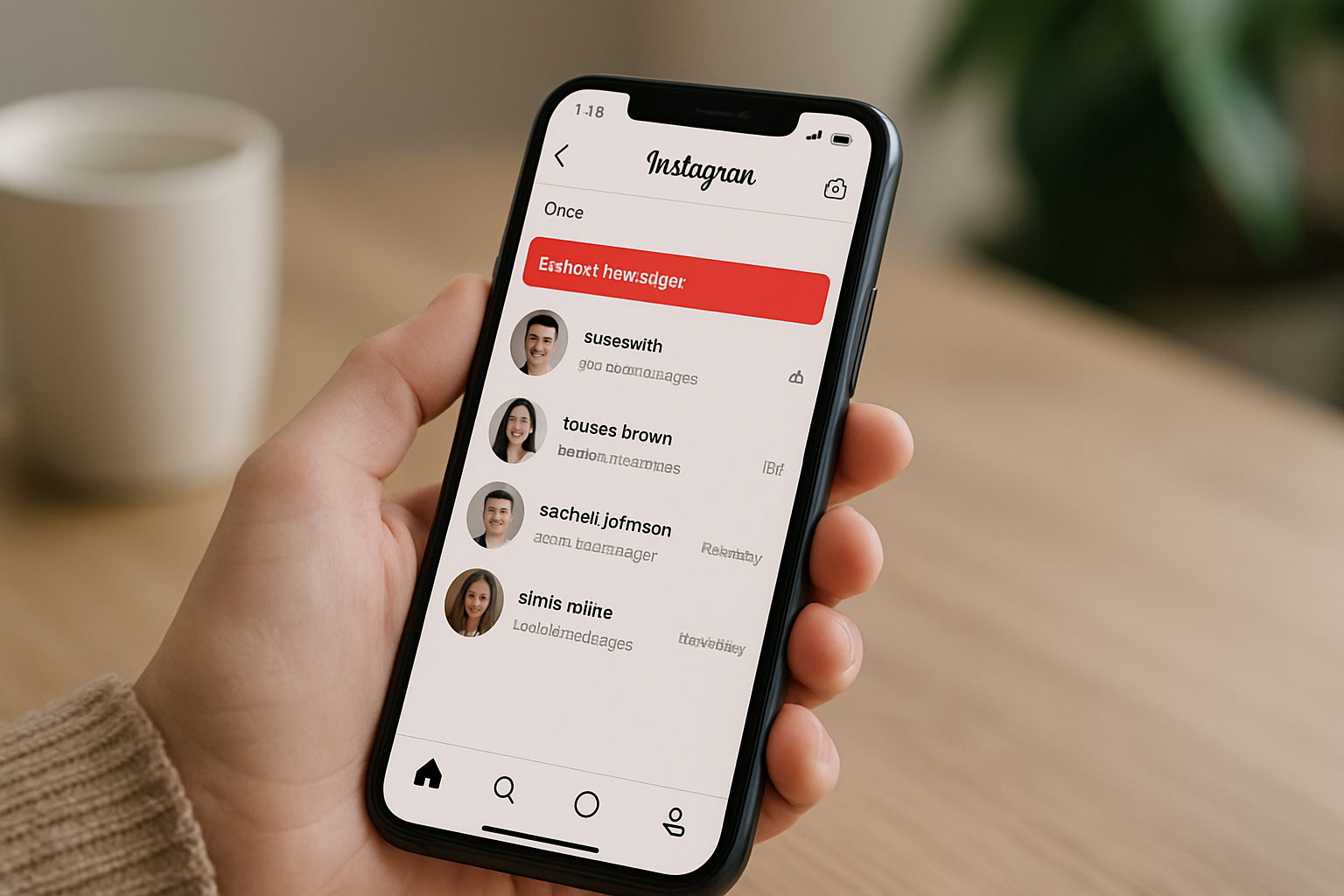
TL;DR: Instagram has no undo button for deleted DMs, but Meta keeps deleted data on its servers for up to 90 days. You can recover messages by downloading your Instagram data, checking Android notification history, or using a third-party recovery tool.
Can you actually see deleted messages on Instagram?
Sometimes, yes. Instagram gives you no in-app undo button once you delete a direct message. The conversation updates instantly and there is no Recently Deleted folder for DMs (that feature only covers posts, Reels, and Stories). But Meta holds deleted account data on its servers for up to 90 days before permanently wiping it. That window is your only real shot at recovery.
Three methods exist. One is official and works on any device. One is Android-only and depends on a setting most people never turned on. One is a paid third-party tool with mixed results. Each has a hard ceiling on what it can recover, so read what each method can and cannot do before you spend time on it.
Quick note on vanish mode: messages sent in vanish mode disappear the moment the recipient closes the chat and are not stored on Instagram's servers at all. No method below will recover those.
How to download your Instagram data to find deleted messages
Requesting a copy of your Instagram data from Meta is the most reliable method. According to Meta's own data policy, deleted content can remain on its servers for up to 90 days after deletion. That means messages you removed within the past three months may still exist in your data export. The download includes the full text of DMs you sent and received, across all conversations.
This works on both iPhone and Android:
- Open Instagram and go to your profile.
- Tap the menu icon in the top-right corner and select "Your activity".
- Scroll down and tap "Download your information", then "Request a download".
- Select "Messages" to keep the file size manageable (you can request all data if you want, but it is slower).
- Choose HTML for readability or JSON if you want to search the file programmatically.
- Submit the request. Meta will email you when the file is ready.
You have exactly four days to download the file after Meta sends the link. Miss that window and you will need to make a new request. Once you have the file, search it by contact name or keywords to find the messages you are looking for. They will not reappear in your Instagram inbox, but you will have a readable copy.
Two limits matter here. If more than 90 days have passed since you deleted the messages, they are gone from Meta's servers. And messages the other person deleted on their end will not appear in your download, because the export only captures data tied to your account.
Switch from Linktree in 60 seconds
Paste your Linktree URL — we'll bring over your links, bio, and avatar. Free forever, no credit card.
Import my Linktree →
How to recover deleted Instagram messages using Android notification history
Android phones running version 11 or newer have a notification history feature that logs recent push notifications, including Instagram DM previews. If you had this setting enabled before the messages arrived, your phone may have saved the first line or two of each message as part of the notification log. This is not a full conversation backup. It is a preview of what the notification said.
To check:
- Long-press on an empty area of your home screen and select "Widgets".
- Find the "Settings" widget and place it on your home screen.
- Tap it and search for "Notification history", or go to Settings > Notifications > Notification history.
- If Notification History is on, you will see a list of recent notifications including any Instagram DMs.
If the setting was turned off when the messages came in, this method will show nothing. iPhone does not have an equivalent feature, so this path is Android-only. The log also clears periodically, so older messages may no longer appear even if the setting was active.
Third-party Instagram recovery tools
Several apps and services claim to recover deleted Instagram messages. The honest summary: results vary widely, most require payment upfront, and the ones that actually work typically do so by scanning a local device backup rather than pulling anything from Instagram's servers directly.
If you regularly back up your phone (via iCloud, Google One, or a local iTunes/Finder backup), a data recovery tool can sometimes extract old app data from that backup before deletion was synced. This works best when the deletion happened recently and you have not backed up since. Tools in this category include iMobie PhoneRescue, Dr.Fone, and Tenorshare UltData.
Before paying for any of these, check whether you already have a recent backup that predates the deletion. If you do, restoring from that backup directly is cheaper and more reliable than using a third-party extraction tool. The tradeoff is that a full restore will also revert everything else on your phone to that earlier state.
One more thing to rule out first: if you use Instagram on a computer and have a browser extension that archives web pages, or if you use a third-party DM client, those tools sometimes retain message history even after the native app deletes it. Worth checking before spending money on a recovery app.
See the side-by-side
Paste any Linktree URL and see how that same profile would look on MyLinks.page.
Preview it →
What Instagram's Recently Deleted feature actually covers
Instagram's Recently Deleted folder, found under Your Activity, lets you restore posts, Reels, and Stories you removed within the past 30 days (Stories have a shorter 24-hour window). It does not cover direct messages at all. A lot of people search for deleted DMs there and come up empty because they are looking in the wrong place.
If what you deleted was a post or Story rather than a DM, Recently Deleted is your fastest fix. For DMs specifically, the three methods above are your only options.
How creators and small businesses can protect their Instagram DMs
If you run a business or creator account on Instagram, losing a DM can mean losing a client inquiry, a collaboration offer, or a customer complaint you needed to document. A few habits prevent this from becoming a problem.
Screenshot conversations that matter before closing them. Instagram's data export is a useful safety net but it requires you to act within 90 days and wait for Meta to prepare the file. Screenshots are instant. For business accounts, consider routing important conversations to email as a matter of practice: ask clients and collaborators to follow up via email once initial contact is made through DMs.
Keeping your link-in-bio page up to date also reduces how much you rely on DMs for conversions. When your profile page has a clear booking link, a product page, or a contact form, fewer of those conversations need to happen through Instagram's inbox in the first place. A good link-in-bio page with real analytics lets you see which links are getting clicks even when you cannot track the full DM conversation that followed.
On Android, turn on notification history now, before you need it. It costs nothing and it means the next time a message disappears you will at least have the preview text. Go to Settings, search for notification history, and flip it on.
The honest bottom line
The most reliable method for recovering deleted Instagram messages is the official Meta data download, and it only works if you act within 90 days of deleting them. Android notification history is a useful backup for recent messages, but it only surfaces previews and only if the setting was already active. Third-party tools work in specific circumstances but require a local device backup that predates the deletion.
None of these methods restore messages to your Instagram inbox. They give you a copy you can read, not a conversation you can continue. If the 90-day window has closed, the messages are gone.
For ongoing peace of mind, screenshot conversations that matter, route business inquiries to email, and turn on Android notification history today.