Instagram Creator Studio: complete guide for creators
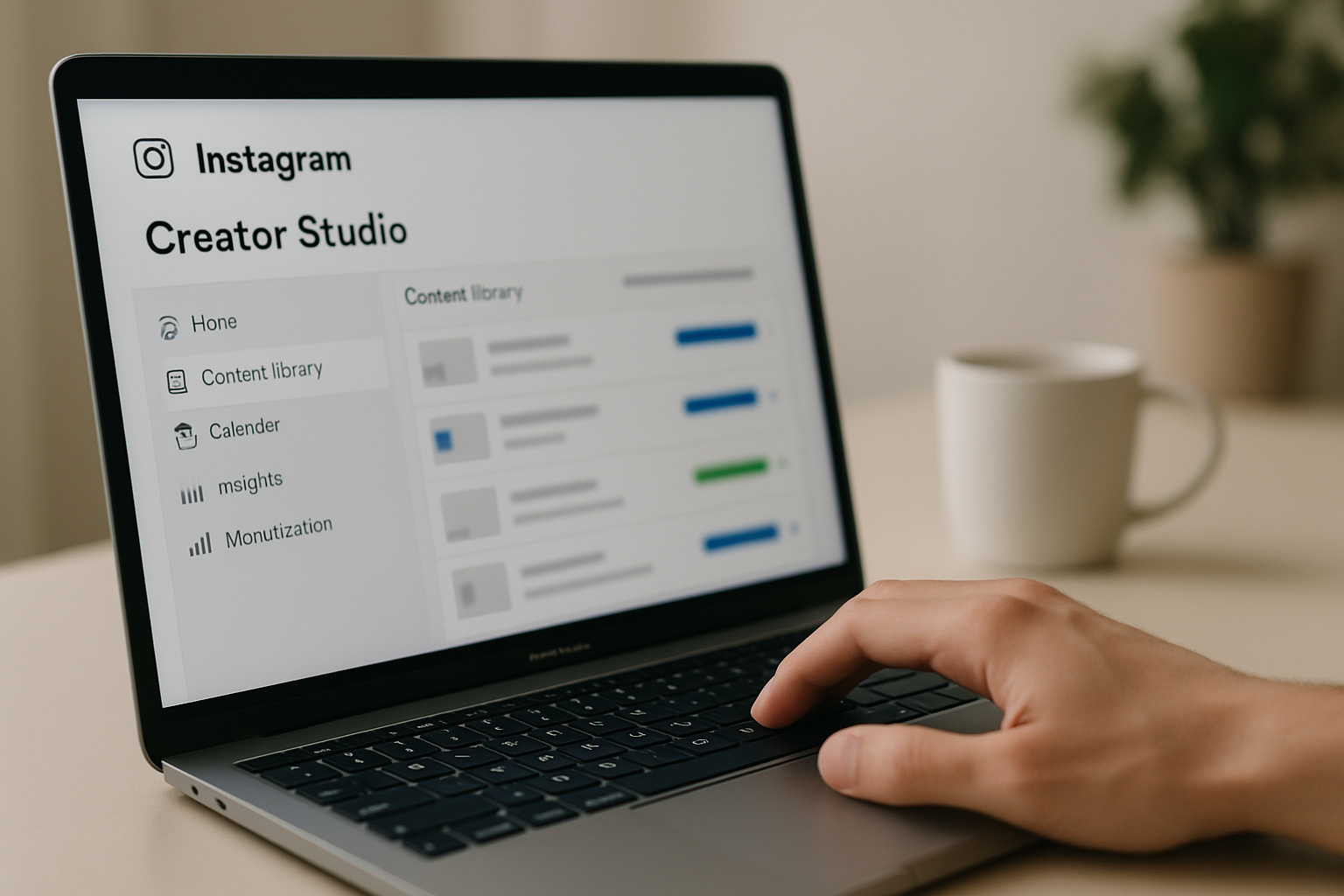
TL;DR: Instagram Creator Studio is a free desktop dashboard for scheduling posts and Reels, reviewing analytics, and managing monetization on Instagram. It does not schedule Stories, and it sends all your traffic to a bio link you control, so the page behind that link matters as much as the content itself.
What Instagram Creator Studio actually is
Instagram Creator Studio is a free web-based dashboard at business.facebook.com/creatorstudio that lets creators and business accounts manage Instagram content from a desktop browser. You can schedule posts and Reels up to 75 days ahead, review engagement data, track audience growth, and access monetization tools, all without touching your phone. Meta built it primarily for accounts that have already set up a Facebook Page connection, but any Instagram Professional Account (Creator or Business) can use the core scheduling and analytics features.
The short version: it is a content operations tool, not a growth strategy. It saves time. It does not solve the fundamental problem of turning Instagram attention into an audience you actually own.
The four things Creator Studio does well
Creator Studio earns its place in a creator's workflow because it collapses four activities that used to require separate tools into one browser tab. According to Meta's own documentation, over 200 million businesses use Instagram, and the desktop interface exists specifically because phone-only workflows break down at any real posting volume.
Content library and performance history
Every published post, Reel, and carousel lives in the Content Library with individual performance data attached. You can sort by engagement rate, reach, impressions, or publish date. The practical use is fast: look at your top ten posts from the last 90 days and ask what they have in common. That is faster inside Creator Studio than inside the app itself, because the desktop view lets you compare multiple posts side by side without tapping through each one individually.
Scheduled publishing
You can queue posts and Reels up to 75 days in advance. Carousels are supported. Stories are not. This is a genuine limitation worth knowing before you plan a campaign: if your strategy leans heavily on Stories, Creator Studio does not cover that format and you will need a third-party tool like Buffer or Later for that piece.
The calendar view switches between weekly and monthly, which is useful if you post daily or run campaigns with a specific rhythm. Seeing a full month at once makes gaps obvious in a way that scheduling one post at a time never does.
Audience analytics
The Insights section shows follower demographics (age, gender, location), peak activity windows, and reach vs. impressions broken down by content type. The most useful number for most creators is peak activity time, because posting when your audience is actually online still matters for first-hour engagement, which still influences distribution.
Creator Studio's analytics are not as granular as paid tools like Iconosquare or Sprout Social, but for most individual creators they are more than enough. The data exports are limited, which is worth flagging if you report to a brand partner who wants raw numbers.
Monetization management
Accounts with over 10,000 followers and a connected Facebook Page can access the Monetization tab, which covers In-Stream Ads (for video content), Brand Collabs Manager (for paid partnership disclosures and deal management), and Badges (live tipping). Creator Studio is where you check payment status, review policy compliance, and see which content is monetization-eligible.
If you run sponsored content, the Branded Content tool inside Creator Studio lets you tag business partners in posts, which satisfies both Instagram's transparency policy and FTC disclosure requirements in one step.
What Creator Studio cannot do (and why your bio link fills the gap)
Creator Studio handles the content and data side of Instagram well. It does not handle what happens after someone watches your Reel and taps your profile. That part, sending a visitor somewhere useful, depends entirely on your bio link. And this is where most creators leave real traffic on the table.
Instagram lets you put one clickable link on your profile. Everyone who visits your profile after discovering your content lands on that one URL. Creator Studio gives you detailed data on how many people visited your profile after seeing a post. What it cannot tell you is what those visitors did after they clicked your bio link, because that is outside Instagram's tracking scope.
If your bio link goes to a generic Linktree page with forced branding and no custom domain, you are sending hard-earned Instagram traffic to a page that does not rank in search, does not carry your brand name in the URL, and shares its domain authority with millions of other accounts. That is a real cost, even if it is invisible in Creator Studio's metrics.
Switch from Linktree in 60 seconds
Paste your Linktree URL — we'll bring over your links, bio, and avatar. Free forever, no credit card.
Import my Linktree →
How to set up Creator Studio for the first time
You need an Instagram Professional Account (switch in Settings under Account) and a connected Facebook Page. The Facebook Page connection is required for scheduling and monetization. If you have never connected one, go to your Instagram profile settings, tap "Linked Accounts," and follow the Facebook Page setup. It takes about three minutes.
Once connected, go to business.facebook.com/creatorstudio and select the Instagram tab at the top. Your account appears automatically. The first thing worth doing is setting your posting schedule: go to the Calendar view, look at your Insights to find your two or three peak audience activity windows, and plan to publish within those windows for the next month.
Scheduling a post step by step
- Click "Create Post" in the top left and select "Instagram Feed" or "Instagram Reels."
- Upload your media. Reels accept video files up to 60 seconds for feed, up to 90 seconds for dedicated Reels.
- Write your caption. Hashtag research done outside Creator Studio can be pasted in directly.
- Instead of clicking "Publish," click the dropdown arrow next to Publish and select "Schedule."
- Pick your date and time, then confirm. The post enters your Calendar queue.
One note on Reels: Creator Studio currently does not support all Reels editing features available in the app, like text overlays added natively. If your Reel relies on in-app text or effects, edit it fully in the Instagram app first, then upload the finished video file to Creator Studio for scheduling.
Reading your Creator Studio analytics like a strategist
The Insights tab in Creator Studio contains more data than most creators ever look at. The sections worth prioritising depend on your goal.
If your goal is reach growth, sort your Content Library by "Reach" over the last 90 days. Look at the top five posts. What format are they? What topic? What posting time? You are looking for repeatable patterns, not one-off viral flukes. A post that reached 40,000 accounts once on a topic you covered once is not a signal. Three posts that each reached 15,000 accounts on related topics with similar formats is a signal worth following.
If your goal is profile-to-bio conversion, look at "Profile Visits" per post in the Content Library. A post with high reach but low profile visits means people watched but did not care enough to tap your name. A post with lower reach but high profile visits is doing the actual conversion work. More of that post type means more people hitting your bio link.
According to a 2023 analysis by Later, posts that include a clear call to action directing viewers to the bio link generate 89% more profile visits than posts without one. Creator Studio shows you the profile visit data. You have to supply the call to action.
Pairing Creator Studio with a bio page that actually converts
Creator Studio is the top of the funnel. Your bio page is the bottom. Most creator advice treats them as separate problems. They are not.
The data Creator Studio gives you, specifically which posts drive profile visits, tells you what content is warming up your audience enough to make them curious about more. When that curious person taps your bio link, what they find either converts them into a subscriber, customer, or follower on another platform, or it does not.
A generic Linktree page with the default linktree.me/yourname URL loses you in a few ways. First, Linktree's domain is what Google indexes, not yours. Any search authority built by people linking to your bio page accrues to Linktree, not to you. Second, the forced branding on Linktree's free tier means visitors see Linktree's logo before they see yours. Third, Linktree's analytics do not connect back to Instagram's data in a way that lets you close the loop on which content type drives which link clicks.
MyLinks.page solves each of those problems. You get a custom domain (yourname.com instead of linktree.me/yourname), no forced branding on the free tier, and link-level analytics that include UTM parameter support. That last piece matters specifically with Creator Studio: you can add UTM parameters to the links on your MyLinks.page profile, schedule posts in Creator Studio that reference those links, and then see in your analytics exactly which Instagram post drove which product click or email signup. Creator Studio provides the posting infrastructure. MyLinks.page closes the attribution loop.
See the side-by-side
Paste any Linktree URL and see how that same profile would look on MyLinks.page.
Preview it →
Common Creator Studio problems and how to fix them
A few issues come up often enough to be worth addressing directly.
Scheduled posts not publishing: this usually means the Facebook Page connection broke. Go to your Instagram Settings, check Linked Accounts, and reconnect the Page. Meta's authentication occasionally expires and requires a manual refresh.
"Your account isn't eligible for Creator Studio": you need a Professional Account, not a personal one. Go to Settings in the Instagram app, tap Account, and switch to Professional Account. Choose either Creator or Business. Both work with Creator Studio.
Reels not showing engagement data: Reels analytics can take up to 48 hours to populate fully after publishing. If a Reel was published in the last two days and shows incomplete data, wait and check again.
Can't access Monetization tab: you need over 10,000 followers, a connected Facebook Page, and compliance with Meta's Partner Monetization Policies. Check your account status at business.facebook.com/monetization-checker for a specific breakdown of which requirements you have and have not met.
The honest assessment of Creator Studio in 2026
Creator Studio is useful and free. For scheduling and reviewing analytics on a desktop, it does the job without requiring a paid subscription to a third-party tool. The 75-day scheduling window is genuinely generous. The monetization tools are legitimately helpful for accounts that qualify.
Its limits are real. No Stories scheduling. Limited data export. Analytics that are sufficient but not deep. No direct integration with tools outside Meta's ecosystem.
For most individual creators, the right stack is: Creator Studio for scheduling and analytics, a strong custom-domain bio page for converting that traffic, and UTM tracking to connect the two. That combination costs nothing extra and closes the gap between Instagram attention and an audience you actually own. Start by replacing your current bio link with one that works as hard as your content does.