Link in Bio for Creators That Actually Converts
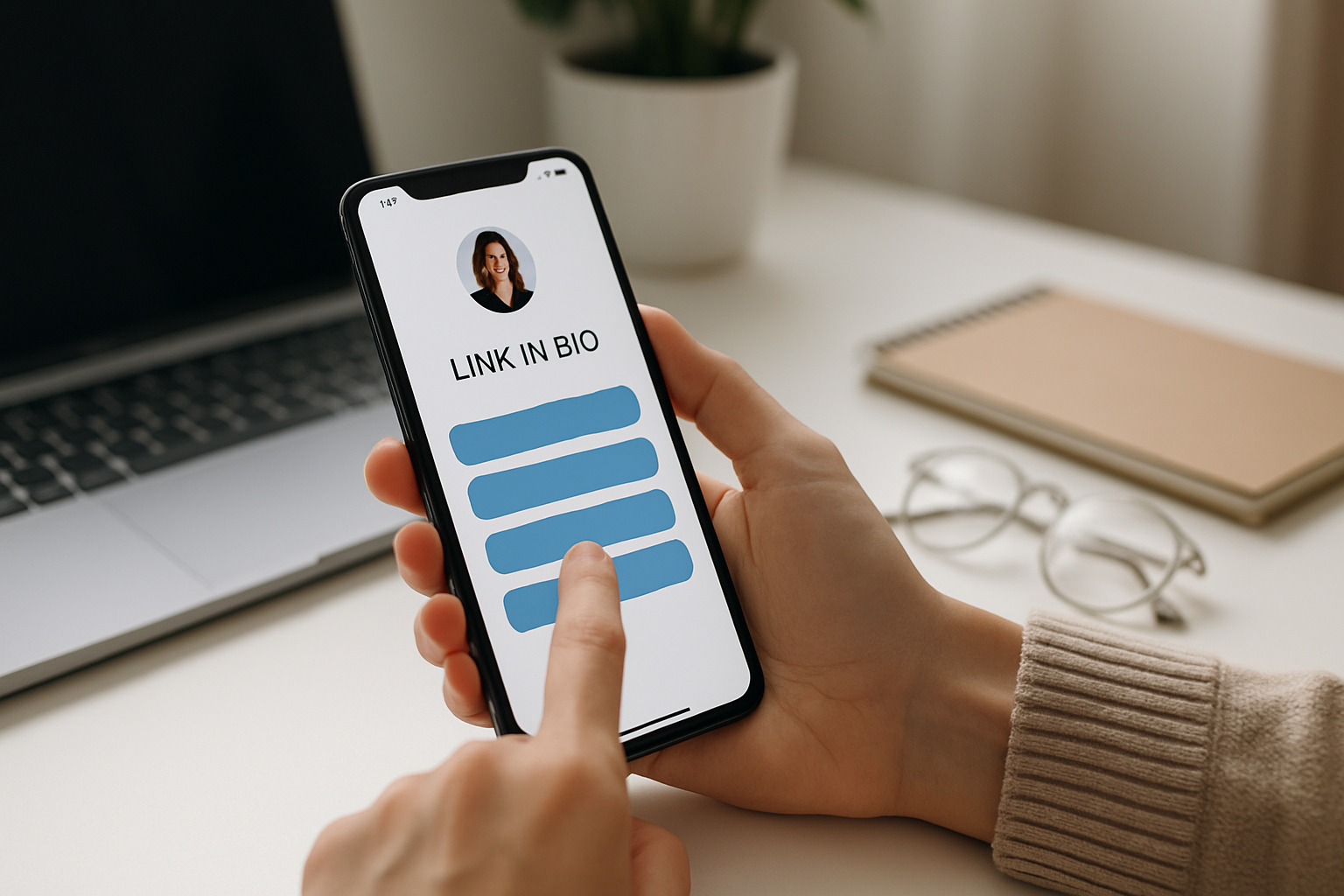
TL;DR: Build a link in bio for creators that converts taps into followers and sales. Creator layout, video backgrounds, free analytics, custom domain at $9/mo.
Your bio link gets thousands of taps a month and almost none of them turn into a follow, a sale, or an email signup. That gap is the whole problem. A link in bio for creators is not a list of links. It is the one piece of real estate every platform funnels traffic to, and most creators waste it on a wall of identical grey buttons that ask the visitor to do everything and nothing.
Here is what actually happens when someone taps your link. They landed because of a specific video or post. They have one thing in mind. If your page makes them scan past twelve options to find it, they bounce. The math is brutal: a few extra seconds of friction can cut your conversion in half.
This guide breaks down why most creator pages leak taps, what a high-converting page includes in order, and how to build one on MyLinks.page using the Creator template, video backgrounds, verified proof blocks, and free analytics that tell you exactly what to fix next.
Key Takeaways
- Most creator bio pages fail because they treat every link as equal weight. Put your latest content or featured offer first, above the fold.
- A high-converting page has a clear order: featured link, top platform, shop, email capture, collab contact, then everything else.
- Free analytics (click-through rate per block, traffic by source) tell you which links to move, kill, or test; geo and device analytics are on Pro.
- MyLinks.page Pro is $9/mo with the option to connect your own custom domain, versus Linktree at $15 to $35/mo with branding on free.
- Verified proof blocks showing live follower counts or revenue lift trust, and trust lifts conversion.
Why most creator link in bio pages fail to convert
Most creator pages fail for one reason: every link looks the same, so the visitor has to think. Every added choice raises decision cost and the odds someone picks nothing. When your newest drop sits in row seven next to a dead Spotify link from 2022, you are asking too much.
The second failure is mismatch. Someone taps your bio after watching a cooking reel, lands on a page led by your podcast, and leaves. The page ignored why they came. Your bio link should reflect what you are posting about right now, not a frozen snapshot from whenever you last touched it.
Third is trust. A page with no proof, no recent activity, and a default platform logo in the corner reads as abandoned. People do not hand over an email or a card to a page that looks dead. If you want to understand the basics first, here is what is link in bio and why it became every creator's home base.
The fourth killer is speed. A heavy page that takes three seconds to paint loses people before they see a single link. Google's research on mobile load times found bounce probability climbs sharply past three seconds, and creator traffic is almost entirely mobile.
What a high-converting creator page includes
A high-converting creator page is ordered by intent, not by when you happened to add each link. The top of the page does the heaviest lifting because most visitors never scroll. Lead with the one action you most want, then descend in priority. Here is the order that works.
Featured content or offer, first. The thing you are promoting right now. New video, product launch, current campaign. This block earns the prime spot and you swap it weekly.
Your top platform, second. Where you want to grow most. If you are pushing YouTube subscribers this quarter, that link sits high with a clear label, not buried under five socials.
Shop or products, third. If you sell anything, courses, merch, presets, it gets a dedicated block with a price or hook, not a vague "my store" link. Conversion lives in specifics. For deeper tactics, read how to monetize your link in bio.
Email capture, fourth. The most undervalued block on any creator page. Platforms change their algorithms; your email list does not. A single field with a real reason to subscribe beats a generic "join my newsletter" every time.
Brand and collab contact, fifth. A clear way for brands to reach you. This block alone has paid for itself for creators who used to bury their email in a wall of text.
All your socials, last. They matter, but they are not the conversion event. Group them at the bottom so they do not compete with the actions that move your business.
Switch from Linktree in 60 seconds
Paste your Linktree URL — we'll bring over your links, bio, and avatar. Free forever, no credit card.
Import my Linktree →
Setting up the Creator template on MyLinks.page
The Creator template is one of the designer templates built around exactly this priority order, so you are not starting from a blank grid. Pick it during setup and the structure, featured block on top, platform and shop below, capture and contact lower, is already in place. You fill it in instead of designing it.
If you are coming from another tool, import first. Paste your Linktree URL and MyLinks.page pulls your links across in about five seconds, so you are editing a populated page instead of retyping everything. From there you reorder by intent.
A few setup moves that matter:
- Set your featured block to your current priority and commit to swapping it weekly. A stale featured block is worse than none.
- Label your top platform with the action, "Subscribe on YouTube," not just the logo. Clear labels outconvert icons.
- Connect a custom domain. Every Pro plan at $9/mo includes one, so your page lives at yourname.com instead of a shared subdomain. That helps brand recall and it helps search engines treat the page as yours.
- Turn off forced branding. The free tier has none, so your page never advertises someone else's logo.
Compared with Linktree's $15 to $35 per month and its branding on the free tier, you are getting the custom domain and a clean page for less. Billing is honest too: no surprise tier jumps. Once the structure is live, the next two levers are how the page looks and what the data tells you to change.
Using a video background
A video background is the fastest way to make a creator page feel alive instead of abandoned. Motion holds attention a beat longer, and that beat is often the difference between a scan and a tap. On MyLinks.page, video backgrounds are built in, not a paid bolt-on.
Use it with restraint. The background sets a mood; it does not compete with your blocks. A short, looping clip of you working, performing, or shooting reads as current and human. A loud, busy video buries your call to action and slows the page. Keep the loop short and the contrast high enough that white headings and your green primary button stay readable on top.
Match the clip to your niche. A musician loops a few seconds of a live set. A fitness creator loops a training shot. The background answers "who is this" before the visitor reads a word, which means your featured block can get straight to the offer instead of re-explaining who you are.
One caution: a video that pushes load time past a few seconds will cost you more taps than the motion earns. MyLinks.page serves these efficiently, but keep the file tight. Test it on your own phone on cellular before you call it done.
Using the verified proof block and analytics to optimize
Proof and data are the two levers that turn a decent page into one that converts. The verified proof block shows live numbers, real follower counts or revenue figures, pulled in rather than typed by hand. A live "182K followers" or a verified revenue stat does work a static screenshot cannot, because visitors can tell the difference between a claim and a verified one.
Why it matters: social proof is one of the most consistent drivers of action in behavioral research, and a verified number is stronger proof than a manual one. A brand deciding whether to reach out, or a viewer deciding whether to subscribe, moves faster when the proof is live and obviously real.
Then let analytics tell you what to fix. The free plan includes click-through rate per block, traffic by source, and geo plus device breakdowns. That is the exact data set a creator needs to optimize, and most competitors gate it behind a paid tier. Read your page like an operator:
- A block with high views but low CTR has a labeling or placement problem. Rewrite the label or move it up.
- Traffic by source tells you which platform actually sends taps. If TikTok drives 70 percent, your featured block should serve TikTok's audience.
- Geo and device data shapes your offers and confirms what you already assumed, your audience is overwhelmingly on mobile, so design for the thumb.
The loop is simple: read CTR, move or relabel the weak blocks, check again next week. For a deeper playbook, see how to get more clicks on your link in bio.
Examples of high-converting creator pages
The pages that convert share a pattern, and you can copy it without copying anyone. Across niches, the winners lead with one clear action, prove themselves with live numbers, and keep the social pile at the bottom. Here are three composite examples drawn from that pattern.
A beauty creator pushing a product launch. The page opens with a short video background of the product in use, a featured block linking straight to the launch with a price, a verified follower count right under the name, then an email capture offering an early-access list. Socials sit last. Every element points at the launch.
A musician releasing a single. Top block is the new track on the streaming service they care about most, backed by a looping clip from the video. Below it, tour dates and a merch block with prices. A verified monthly-listener number does the trust work. The bio reflects the release, not a generic "I'm a musician" intro.
A coach selling a course. The featured block is the course with a one-line outcome promise, not "my offerings." A verified revenue or student-count proof block sits high. Email capture offers a free lesson as the hook. Collab contact is visible for podcast and brand invites. The page reads like a focused landing page, because that is what a good creator bio is.
Tips for promoting and A/B improving the link across IG, TikTok, and YouTube
Promoting the link is half the job; testing it is the other half. The link only converts traffic you actually send to it, so make the call to action explicit on every platform and use the analytics to improve one thing at a time. Per platform, here is what works.
Instagram. Put the link in your bio and reinforce it in Stories with a link sticker tied to whatever your featured block is that week. According to DataReportal's 2024 global reports, billions of people use social platforms monthly and Instagram remains a top channel for creators, so a clear "tap the link in bio" in your captions still pulls weight.
TikTok. Your bio link is the only clickable escape hatch from the feed, which makes the featured block do almost all the work. Call it out in the video and in the caption. Then check traffic by source: if TikTok is your biggest driver, your top block should match what that audience just watched.
YouTube. Use the link in your channel description, pinned comments, and end screens. YouTube viewers convert well because they arrive with intent, so point them at a featured block that continues the video, a deeper resource, a product, a list.
Now test. Change one variable, the featured label, the button color, the block order, and watch CTR for a week before judging. The Pew Research Center's reporting shows how concentrated attention is on a handful of platforms, so small CTR gains on your top source compound fast. Resist changing five things at once; you will not know what worked.
Frequently asked questions
What should a creator put in their link in bio?
Lead with your current featured content or offer, then your top platform, your shop, an email capture, a brand and collab contact, and your socials last. Order by what you most want a visitor to do. A creator link in bio works best when the top block matches why people are tapping right now.
What is the best link in bio for creators?
The best link in bio for creators gives you conversion data and growth tools without a premium price. MyLinks.page includes analytics free, a Creator template, video backgrounds, verified proof blocks, and the option to connect your own custom domain, versus Linktree at $15 to $35/mo with branding on its free tier.
How do I make my link in bio convert better?
Read your analytics and fix the weak blocks. A block with views but low click-through has a label or placement problem, so rewrite it or move it up. Lead with one clear action, add a verified proof block, and test one change at a time so you know what actually moved the number.
Is a custom domain worth it for a creator page?
Yes. A custom domain puts your page at yourname.com instead of a shared subdomain, which helps brand recall and helps search engines treat the page as yours. On MyLinks.page it is included on every Pro plan at $9/mo, so there is no extra fee to clear.
How long does it take to switch from Linktree?
About five seconds to import. Paste your Linktree URL and MyLinks.page pulls your existing links across, so you start by reordering a populated page instead of retyping everything. From there you pick the Creator template and reprioritize by intent.
Bringing it together
A link in bio for creators only earns its place when it turns taps into follows, sales, and signups, and that comes down to order, proof, and data. Lead with one clear action. Back it with a verified number. Push your socials to the bottom where they belong. Then let free analytics show you which blocks to move, relabel, or kill, and change one thing at a time.
The tools matter because the cheap ones gate the data you need and the expensive ones charge double for less. MyLinks.page hands you the Creator template, video backgrounds, verified proof blocks, free conversion analytics, and a custom domain for $9/mo, half of what Linktree charges, with no forced branding and honest billing.
Pick the Creator template, import your old page in about five seconds, set your featured block, and check your click-through rate next week. Claim your handle free at MyLinks.page →